

Are you using iTunes to update or restore your iPhone? Although this works most of the time, you may sometimes find that iTunes get stuck on Extracting Software. If that ever happens, here’s what to do about it.
“iTunes stuck on extracting software” has three main solutions.
In this article, we’ll walk you through the problem, and how to carry out each of the three solutions. In the end, we will also offer some additional suggestions.
What Does “Extracting Software” Mean?

If you’re not a tech wizard, terms such as “extracting software” might be a bit confusing. But it’s more simple than you might think.
When your phone or computer downloads a new file, it will probably use a compressed file. As the name suggests, a compressed file is one where all the documents and information inside are compressed to make it smaller. This makes it easier and quicker to send from one computer to another.
Think of it a bit like how a mattress will often be rolled up while it’s transported to your house.
To use the files, your computer will need to uncompress them. Much like how you may need to uncompress a mattress before you can sleep on it.
Why Does iTunes Get Suck On Extracting Software?

There are three possible reasons why your iTunes might be stuck on “extracting software”.
Firstly, it could be an issue with the firewall. Most technology will have some kind of firewall in place to prevent you from downloading or uncompressing anything damaging.
Secondly, you might just have a slow network. If you’re downloading something that requires fast internet, of course, slow internet is going to make that process slower and even discontinued. Thus, the files that have already been downloaded might be damaged.
Another reason could simply be that iTunes itself has some unknown problem.
Solutions To “iTunes Stuck On Extracting Software”
As we talked about at the beginning, there are 3 main solutions to fix this iTunes problem. These are proved to work by some people. We will talk more about them one by one so that you can easily follow them.
Solution #1- Disable Firewall
The first solution is to temporarily disable your firewall. Before we tell you how to do this, please remember that it needs to be temporary. If you do not turn it back on once you are done with your iTunes problem, your device could become vulnerable to virus attacks.
Sometimes, your computer might mistake aspects of the update for a virus. Particularly if you have a Windows PC that will view the apple file as a threat.
By turning your firewall off, you may be temporarily vulnerable, but the files which were previously incorrectly labeled as a threat will be able to download.
But anyway, here’s how to do this…
- Go onto the Control Panel.
- Search for “Windows Firewall” and open it.
- Once you open the Windows Firewall settings, from the left side, choose “Turn Windows Firewall on or off“.
- Select the option “Turn off Windows Firewall“. Finally click OK button

Whether it works or not, turn the firewall back on!
If you are worried about turning off the firewall, consider using some kind of anti-virus software, such as avast whilst the firewall is down. However, if the problem is not solved, you need to turn off the anti-virus software as well.
Solution #2 – Update iTunes
Another common reason why iTunes is stuck on “extracting software” is that the version of iTunes you have is out of date. You may have noticed that Apple tends to do this whole “make old stuff not work anymore” thing a lot. It applies to their software, as well as their phones.
Yep, Apple could intentionally slow down the older versions of their iTunes, to encourage people to download the newer versions. It might be annoying, but we have to do that in order to avoid problems.
Having an older version of iTunes can make the whole system run slower. Here’s how to check you’re up to date.
- Open up iTunes.
- Click the “Help” drop-down menu.
- Select “Check for updates“.
- Download the required update if there is.

If you do decide to update your iTunes, please be careful of scams. If you see something online that says “Click here to update your iTunes”, avoid it like the plague. It is almost certainly not an iTunes update, but some kind of Trojan virus.
Only update using the method mentioned or download the latest version of iTunes from Apple office website or Microsoft store. We recommend that you download it from Apple official website if you did it before. If you used to download iTunes from Microsoft store, do the same now.
Solution #3 – Use a Program to Fix iTunes
The final solution would be to download a piece of software called “iMyFone TunesFix“. This is the iTunes fix for people who cannot think of what else they could do.
Why do we need to use third-party software to fix iTunes problems? This is because iTunes has a few components, and sometimes, even uninstallation cannot move the parts with problems. Instead of worrying about how to solve the problem, you can just let this software do it all for you.
Please note this is paid software, but it only costs 14.95USD per year. If you are not willing to try it, check the additional suggestions at the end of this blog. If you are still interested in it, here is how to download and run “iMyFone TunesFix”.
- Go to iMyFone official website.
- Download and install the version of TunesFix that is suitable for your computer.
- From the options on-screen, choose “Repair Backup/Restore Errors“.
- Start the repair process by clicking “Repair” button.
- Wait for the work to be done for you.
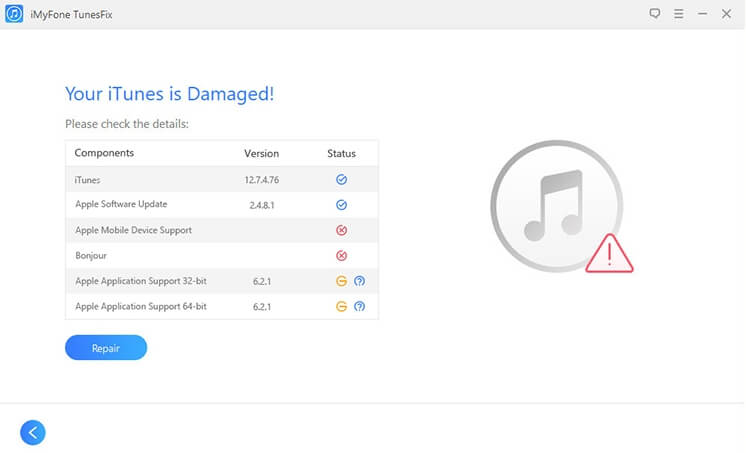
If there are any additional steps you need to do, the program will let you know.
At the end of this process, you should be able to update or restore your device, and everything should run quickly and smoothly. If you are still a bit nervous about downloading this kind of software, feel free to double-check it with some kind of anti-virus software.
Additional Solutions
Maybe you’ve tried all of that and you are still facing some problems. Here is a quick list of some suggestions about what to do if iTunes is STILL stuck on extracting software.
- Turn your computer off, let it cool down for a few hours, and try again.
- Put your whole computer through a virus scan to eliminate anything that might try to attach itself to your files.
- Double-check your internet connection. Or wait for a time when fewer devices are connected to a single network.
- Make sure you have the real version of iTunes from apple- not a fake one that someone has used as a Trojan for virus.
- If all of that fails, you may need to take it into the apple store.