

Some readers ask me whether they can restore WhatsApp from Google Drive to iPhone. The direct answer is YES, but there is no free method because WhatsApp cannot be transferred across different OS with the official backup and restore method.
Back to the question, if you really want to restore WhatsApp from Google Drive to iPhone, the only way you can make it is using third-party software that is able to achieve that.
- The Only Effective Way to Restore WhatsApp from Google Drive to iPhone
- The Alternative Method to Transfer WhatsApp Data from Android to iPhone
The Only Effective Way to Restore WhatsApp from Google Drive to iPhone
As I mentioned at the beginning, this way is not free because you have to purchase a tool. There are many choices online, so just choose the one you like. They work in a similar way. I will introduce iCareFone Transfer here because I tried it and it worked great. Also, it is a little cheaper than other tools.
We need to use their new feature which can directly restore WhatsApp from Google Drive to iPhone. After installing it, I found it can also backup WhatsApp on both Android and iPhone to a computer for free. If you want to export your WhatsApp messages, contacts, photos, videos, emojis, and files, it can also meet your needs.
If you are those who have just purchased a new iPhone and want to transfer all WhatsApp messages and media files from Android to iPhone through a backup on Google Drive, actually you don’t need to backup WhatsApp to Google Drive and then restore the backup from Google Drive to iPhone. Instead, you can use the tool iCareFone to directly transfer WhatsApp data from Android phone to iPhone.
Steps of How to Restore WhatsApp from Google Drive to iPhone
Before we started, install the tool iCareFone Transfer on your computer. It has both Mac and Windows versions. Here we will show the steps on a Windows computer. The steps on Mac are almost the same.
- Open the software after installation. From the tab “Backup”, click “Download WhatsApp backup from Google Drive to the computer”.
- It will turn to another interface where you can enter your Google Drive account and password.
- Once you log into your Google Drive account, you will be able to see all your WhatsApp backups on Google Drive. Choose the one that you want to restore to your iPhone and click Continue.
- After downloading the backup, there will be 2 options “Restore Backup” and “View Backup”.
- To confirm it is the backup that you want to restore, click “View Backup” to see the details in the backup.
- After checking, you can choose “Restore to iOS”.
- Connect your iPhone to computer and follow the on-screen instruction to finish the restoration process.
- Once it finishes the restoring, you can see all WhatsApp data restored from the Google Drive backup.

Now you’ve known how to restore WhatsApp from Google Drive to iPhone. If you want to know how to transfer WhatsApp data directly from Android phone to iPhone, just follow the guide below.
Steps of How to Restore WhatsApp from Android Phone to iPhone
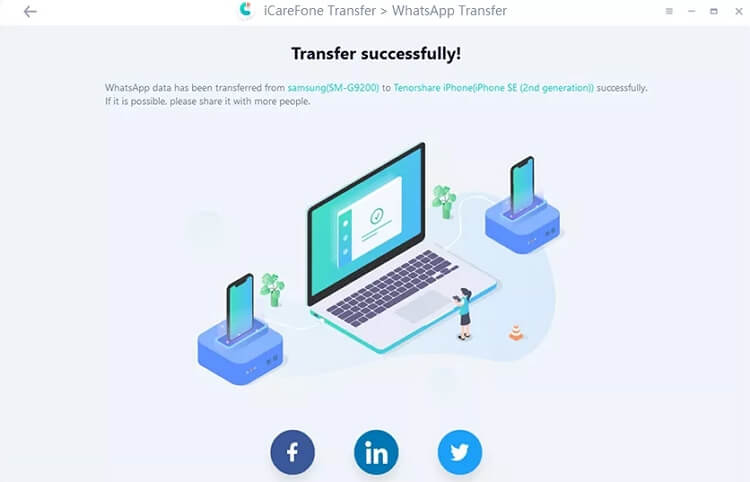
Open iCareFone Transfer and choose the “Transfer” tab. Connect your Android phone and iPhone. There are several steps on the screen. Please follow the steps one by one and do as the instruction requires. You will need to backup WhatsApp data on your Android phone, and verify your WhatsApp account. The software will process the data backed up on your Android phone, and generate the data that can be restored to iPhone.
The Alternative Method to Transfer WhatsApp Data from Android to iPhone
For those who don’t want to try a third-party tool, there is an alternative method to transfer WhatsApp chat history from Android phone to iPhone, but it is not perfect. It will export a ZIP file with messages in a .txt file and media files separately. You can send the ZIP file from Android phone to iPhone through Email. Here is how to do it:
Choose the chat history that you want to export. Tap the 3-dot icon, and choose More > Export chat. You can attach media or exclude the media before exporting. Then select the Email app and enter your email credentials to send that email to yourself. You will be able to check it on your iPhone.
Note: If you choose to export the chat history with media, you can send up to 10,000 latest messages. If not, you can send 40,000 messages. These limits result from maximum email sizes.


