
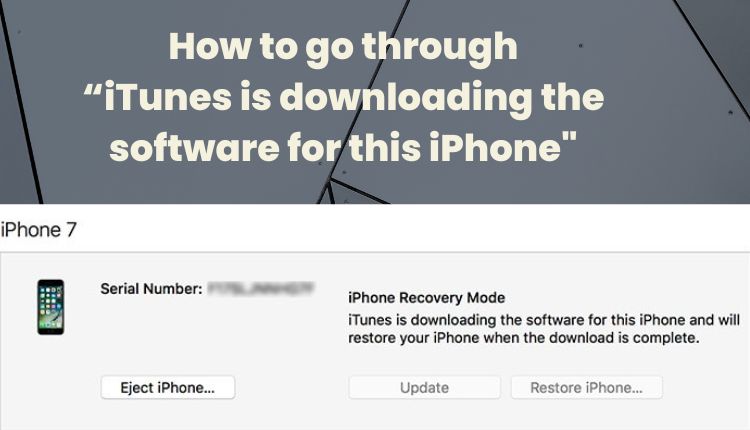
When trying to restore your iPhone using iTunes, you may find it is stuck on an interface telling you that “iTunes is downloading the software for this iPhone and will restore your iPhone when the download is complete”. iTunes may be unable to complete the software download procedure. To get more insights on how to fix and go through this step read this article.
How long does it take when iTunes is downloading the software for this iPhone?
There is no exact set time for this procedure as it depends on various factors such as the strength and speed of an internet connection and the ability of your iTunes to quickly connect to Apple servers. Normally it takes less than 1 hour for iTunes to completely download and install a software update on your iPhone.

What to do when iTunes is stuck on downloading the software for this iPhone
Once you realize that iTunes has been stuck on downloading software for your iPhone for a long time, stop waiting for it but instead use the methods below to fix the issue.
#1 Check the software downloading progress
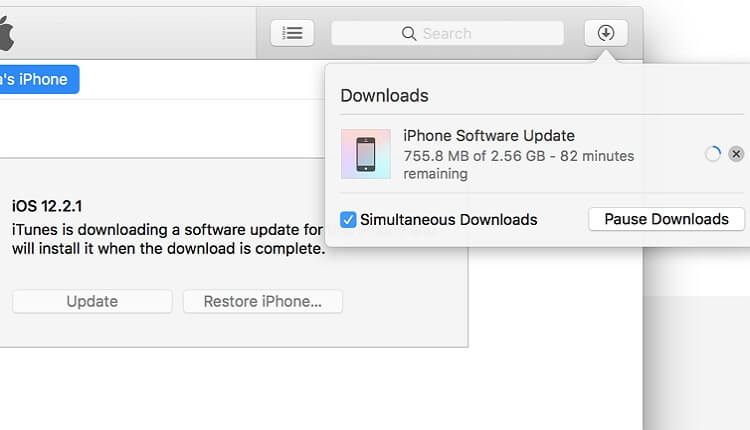
When iTunes is saying that “iTunes is downloading the software for this iPhone and will restore your iPhone when the download is complete”, you can check the software downloading progress to see whether the software is downloaded by iTunes normally and whether the circular progress bar is moving or not. If it is moving, just keep waiting. iTunes will restore your iPhone once the software is downloaded. However, if the time taken is more than 15 mins, you have to put your iPhone into recovery mode again since it will automatically exit recovery mode after 15 mins unless your iPhone is stuck in recovery mode.
#2 Check the network of your computer
A strong and reliable network connection is very necessary whenever you want to update or restore your iPhone. Using a weak and slow connection might lead to download errors and failure to complete the process. Because of that, check your computer to make sure that your internet connection is fully active. You can even switch the Wi-Fi option On and Off as a way of restarting the internet connection. Also, you can use a different network if you suspect that your network connection is the one causing errors and delays in the software download.

#3 Update iTunes
An old or outdated version of iTunes may cause errors. Therefore it is important to get the latest version of iTunes.
If you download and install your iTunes from the Microsoft store then you do not have to worry about manually updating it constantly because whenever the store introduces a new version, iTunes updates automatically.
However, if you turn off the automatic updates then it will not update automatically.
In case your iTunes program was downloaded from the official Apple website do the following:
- Run the iTunes program.
- Select the Help option, which is found in the menu bar.
- Click on Check for Updates.
- Follow the given instructions to install the latest version of iTunes.

#4 Try another computer
If you are still experiencing the same problem even after attempting the above solutions, then it means the cause of your iTunes download problem is hardware related. Your computer might be having some problems or even various files that may be preventing iTunes from connecting to the Apple servers. Therefore you may have to use a different computer to carry out the iTunes software download for your iPhone.

#5 Download the IPSW file manually
IPSW is an abbreviation for iPhone software file. It is the file that iTunes downloads before a software update/restore. As such you can download this IPSW file manually to solve and bypass “iTunes is downloading the software for this iPhone” interface.
Before you can download and attempt to use the IPSW file, first make sure that your iTunes program is up to date. To manually download the IPSW file:
- Download the latest version of the IPSW file from this website. Then use the iTunes program to successfully install the IPSW file on your iPhone.
- With the help of an original, well-functioning Apple USB cable, connect your iPhone to your PC.
- Run the iTunes program or Finder in case you are using a mac and then select your iPhone on your computer.
- For iTunes users, press down the SHIFT button at the same time and tap on the Restore option.
- For mac users, hold down the Option button and then click on Restore.
- Click on your downloaded IPSW file and tap on Choose.
- Your iPhone will then proceed to update.

#6 Use a third-party tool
Tenorshare ReiBoot is a professional recovery tool that is commonly used to repair iPhone system. There are 2 repair modes being the Standard repair as well as the Deep repair. Standard repair helps to solve iOS errors and glitches without causing data loss. Deep repair results in data loss but fixes more serious problems. To use this recovery tool to fix the problem that iTunes is stuck on downloading software for this iPhone”, do the following:
- Using your computer, download and open the Tenorshare ReiBoot program.
- Connect your iPhone to the PC using a well-working and original Apple USB cable.
- Make sure this program recognizes your iPhone.
- To use this recovery tool click on the Start option.
- Then tap on Standard Repair in order to continue with this process.
- From there download the Firmware package.
- To start the System recovery, click on Start Standard Repair.
- The program will then fix all software errors and stuck issues on your iPhone.

This “iTunes is downloading the software for this iPhone” issue may be very frustrating and time-consuming. I hope the methods above help you to successfully download the software needed for your iPhone.


