
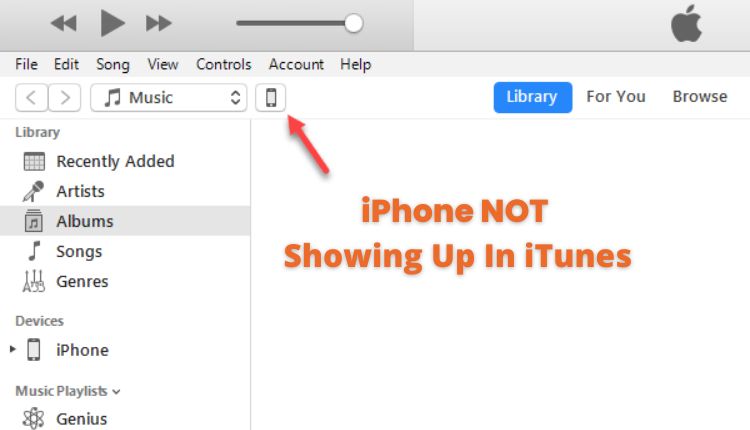
When you plug your iPhone into your computer, do you find that the iPhone logo isn’t coming up on iTunes?
In this article, we’ll cover how to see where the issues lie and how to fix them.
1. An Important Reminder
Before we start telling you how to fix the issue, your iPhone must be in its normal state. If it’s frozen, stuck on the Apple logo, or won’t turn on, iTunes will not detect it.
You will need to put it in recovery or DFU mode to fix this issue. Click here to learn how to get your iPhone into recovery or DFU mode.

2. Do Some Checks to Fix iPhone Not Showing up in iTunes
Before you can fix the issue, you need to diagnose it. There could be several reasons why the iPhone symbol is not showing up in iTunes – your phone, computer, cable, or USB port.
Let’s look at some of the checks you can do to see where the issue lies.
2.1. Have you unlocked your iPhone?
If your phone is locked, the iPhone symbol will not show up on iTunes. If you know the passcode, type it in to unlock your phone.
If you do not know your own passcode, you will have to restore your device to factory settings using recovery mode. Your data currently on the iPhone will be erased, but you can restore it from an iCloud backup if you have one.

Your iPhone might be locked because you’re using a different SIM card. If you have changed carrier, you will need to contact your new carrier for an unlock code.
Once you know the “unlock code”, remove the old sim, replace it with the new one, and enter the unlock code.
2.2. Have you trusted this computer on your iPhone?
One common mistake that many iPhone users make is they forget to set their iPhone to trust their computer.
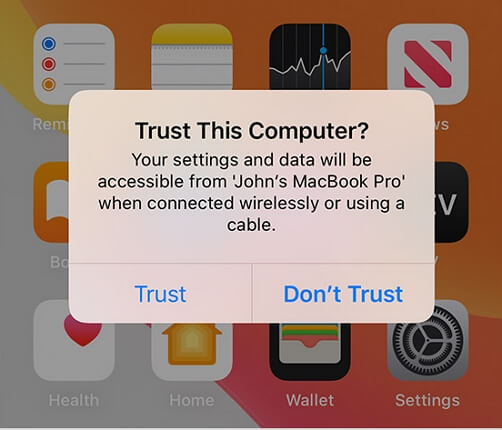
When you plug your device into your computer and unlock your iPhone, it should display a message that reads “Trust This Computer”.
All you need to do is to click “Trust”, and your iPhone will know that you wish for it and your computer to exchange data.
2.3. Are you using the original cables?
The fact that a cable fits and even charges your phone doesn’t mean it can do everything a cable should do.
If you got your iPhone cable from a third party, it could be that it cannot transfer data and can only charge your phone.
We would recommend going into an Apple store for a cable that will work. You could even take your computer to the store, so you’ll be 100% sure that the cable you use does its job.
We would NOT recommend ordering a cable online. Although it may be cheaper, you’re out of luck if it doesn’t work!
Besides, it is recommended that you try to unplug your cable and plug it in again. Sometimes there might be some connection problem between your USB cable and USB port.

2.4. Did you try the other USB Ports?
Most computers have more than one USB port.
Try changing the USB port you plug your iPhone into. Perhaps one USB port has somehow become dislodged, so your computer will not recognize anything you plug into it. It could also have become clogged up with dust or debris.
If none of your USB ports works, try plugging your iPhone into a different computer.

2.5. Did you try to connect your iPhone to another computer?
However, the issue could also be your computer. Due to hardware, software, or firewall issues, it may struggle to accept new devices.
Plug your iPhone into another computer with iTunes to find out whether this is the issue. If the other computer can see that an iPhone has been plugged into it, you’ll know that the problem is your computer.

2.6. Did you try connecting another iPhone or iPad to the computer?
Maybe the issue is nothing to do with your computer or the cable. Perhaps it’s your iPhone that is at fault.
You can test this hypothesis by plugging your iPad or other Apple devices into your computer. If, when you plug your iPad into your computer, you see an iPad symbol on iTunes, you’ll know that the issue lies with your phone. To solve this problem, check “Update iPhone software” below.

2.7. Did you force restart your iPhone and reboot your computer?
Wherever the issue may lie, you should try force restarting your iPhone and rebooting your computer.
How you force restart an iPhone depends on which model you have.
iPhone X, Xs, Xr, 11, 12, 13, 8.
- Press Volume Up.
- Press Volume Down.
- Hold the side button until you see the Apple logo.

iPhone 7 or 7 plus
- Hold the side button and volume down button simultaneously until you see the Apple logo.
iPhone 6s or earlier
- Hold the Home button and Side or Top button simultaneously until you see the Apple logo.
Rebooting a computer is simpler. You turn it off and back on again.
3. How to Fix iPhone Not Showing Up in iTunes
So, now you know the cause of the problem, how do you solve it? Here are four solutions.
3.1. Update iPhone Software
If the issue lies with your iPhone, you should update the software. A newer version of iTunes might not recognize older versions of iOS.
Here is how to update your iPhone software on the device.
- Open the Settings app.
- Select General.
- Select Software Update.
- Wait for the phone to check for updates.
- Once you see a new version of iOS, click Download and Install button.
- Your iPhone should now update to the latest version of iOS.

On your iPhone, follow these instructions to make your iPhone update its iOS automatically.
- Open the Settings app.
- Select General.
- Select Software Update.
- Select Automatic Updates.
- Make sure the toggle next to Download iOS Updates and Install iOS Updates is green.
3.2. Update iTunes- For Windows Users
Perhaps the issue is not iOS but iTunes. If you have an older version of iTunes, it might not work with a newer version of iOS.
If your computer uses the Windows operating system, you can update iTunes.
- Open iTunes on your computer.
- In the top menu, select Help.
- Select Check For Updates.
- Follow the on-screen instructions to update iTunes.

3.3. Update MacOS- For Mac Users
If your computer uses Finder, you will need to update the whole operating system.
- On your Mac, click the apple symbol, and then select System Preferences.
- Select Software Updates.
- Select Update Now.

3.4. Uninstall iTunes and Reinstall it
Sometimes updating iTunes may not work. You could also try uninstalling and then reinstalling iTunes.
Firstly, here’s how to do that on Windows.
- Open the Control Panel.
- Select Programmes.
- Select Uninstall a Programme.
- Scroll down until you find iTunes (Hint: it’s listed alphabetically).
- Restart your computer.
Remember to uninstall iTunes components like the ones below if there are any.
- Apple Software Update
- Apple Mobile Device Support
- Bonjour
- Apple Application Support (iTunes 9 or later)

Here’s how to remove iTunes on a Mac.
- Open the Finder.
- Select Applications.
- Select iTunes and drag it to Trash.
- Ctrl+Click on the Trash, then select Empty Trash.
If you get a message about how you can’t delete iTunes, here’s what to do.
- Ctrl+Click iTunes.
- Select Get Info.
- Expand the Sharing and Permissions.
- Click the lock icon.
- Set everyone to Read and Write.
- Drag iTunes into the Trash, and empty it.
Note: If you only have Finder on your computer, then it is not allowed to be removed as it is a part of your macOS.
Restart your Mac by turning it off and back on again. Click here to download iTunes again from Apple’s website.


